Fecurity
Fecurity launch guide and Medal.tv game detection
Follow the regular Fecurity launch sequence first. If Medal.tv cannot recognise a game that is already open, use the illustrated process-selection walkthrough below.
One guide covers every cheat from this brand — the steps are identical.
Prepare the game and overlay
- Set the game to Windowed or Borderless mode. This launch sequence uses a windowed display mode rather than exclusive fullscreen.
- Pick one gaming overlay application: Medal.tv or Discord. Keep that application open and close the game before running the Fecurity launcher.
Activate the launcher and open the menu
- Open your supplied Fecurity launcher, enter the licence key and allow its computer check to finish.
- After the launcher restarts the PC, wait for Windows to finish loading. Reopen your chosen overlay application if it did not start automatically.
- Start the game in Borderless or Windowed mode. Try Delete for the Fecurity menu; Home and Insert are the alternative keys to check if Delete does not respond.
When the missing menu occurs with Medal.tv, check whether Medal has recognised the game using the next section.
Medal.tv stays on Waiting For Game
Use these steps with the game already running and Medal.tv still waiting to detect it. Each screenshot links to a full-size version so that the controls remain readable.
- Open the recording menu by selecting Waiting For Game in the top bar of Medal.tv.
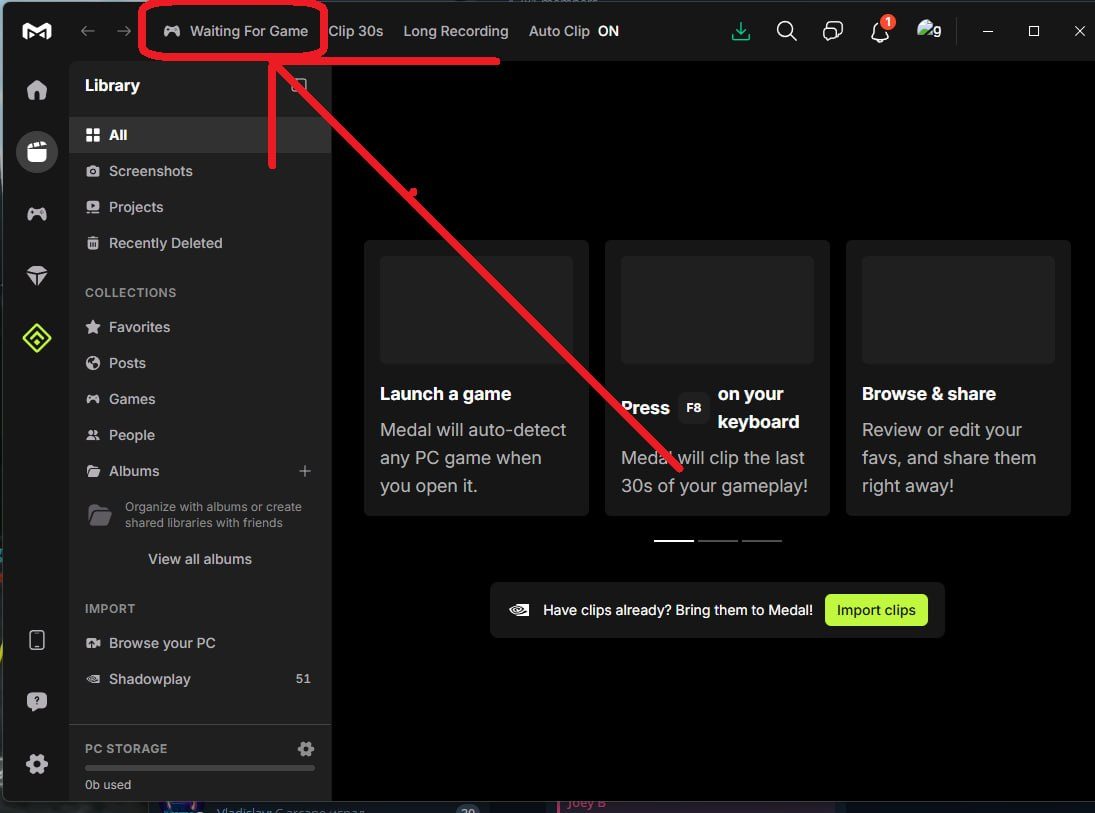
Medal.tv — Waiting For Game - Select the large Waiting for game to be detected card. Its subtitle offers a manual choice when automatic detection has not found the game.
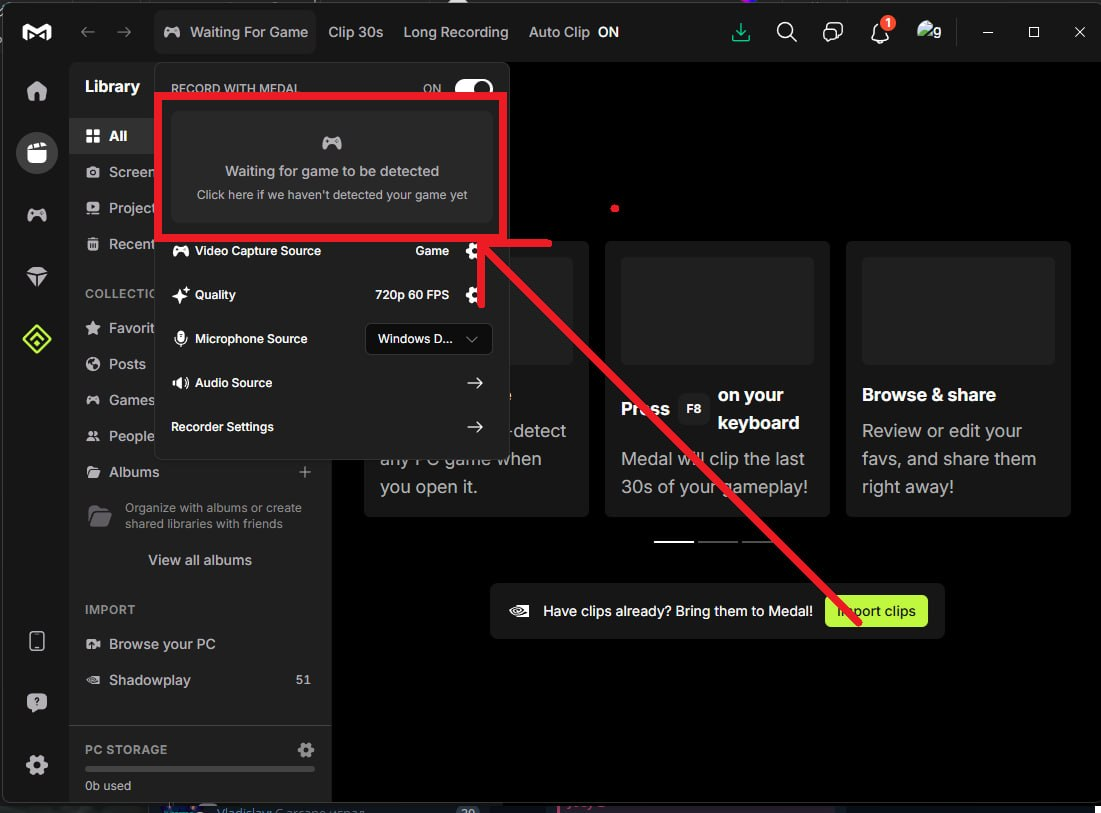
Medal.tv — Waiting for game to be detected - A source-selection window opens with Game and Desktop tabs. Keep Game selected and press the detection card once more.
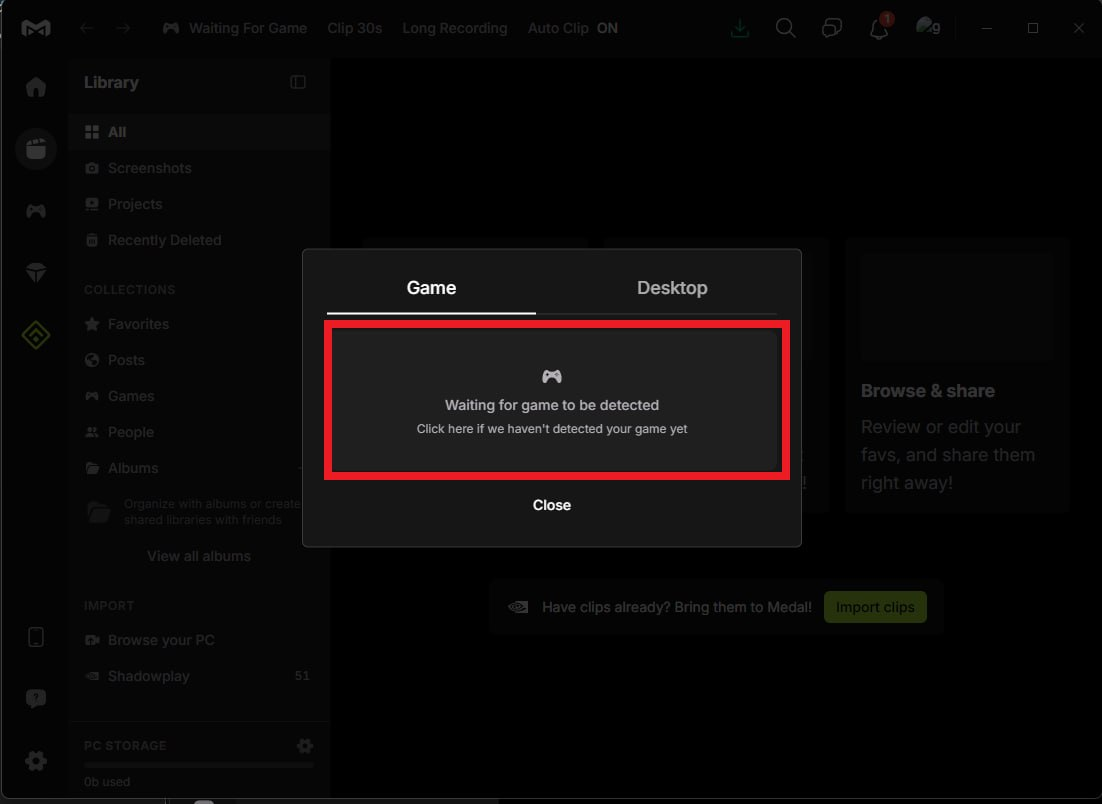
Medal.tv — Game - If Just a moment while we find your game… never finishes, use the It’s not loading link.
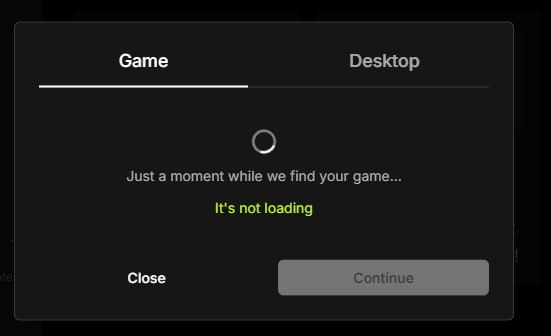
Medal.tv — It’s not loading - Expand Select your game process… and pick the process belonging to the running game. The button beside the list refreshes the available processes.
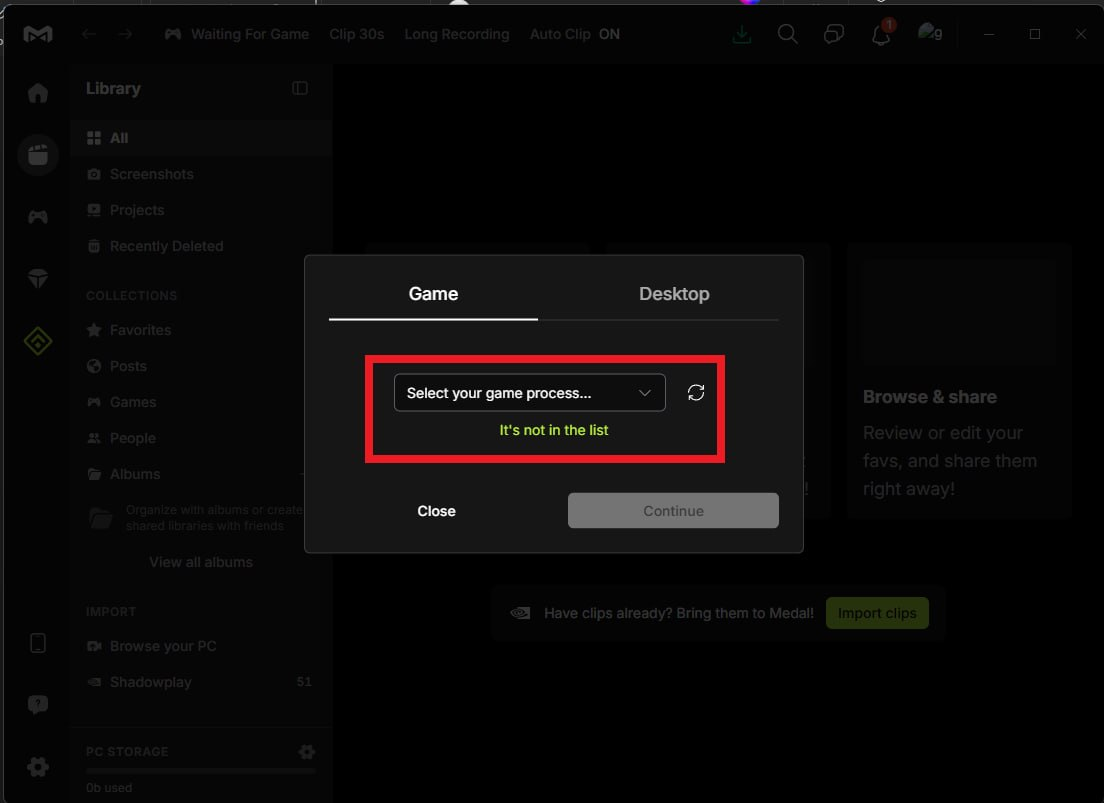
Medal.tv — Select your game process… - Confirm your selection with Continue. Switch back to the game, check for the overlay and then try opening the Fecurity menu.
Medal.tv — Continue
Select the game itself. Executable names vary between games, and the supplied screenshots do not identify a particular EXE. If the process is missing, check that the game is running and refresh the list.
Applies to
- Fecurity hack for ARC Raiders ARC Raiders
- Fecurity hack for Arena Breakout Infinite Arena Breakout Infinite
- Fecurity hack for BattleBit Remastered BattleBit Remastered
- Fecurity hack for Battlefield V Battlefield V
- Fecurity hack for Battlefield 1 Battlefield 1
- Fecurity hack for Battlefield 2042 Battlefield 2042
- Fecurity hack for Dark and Darker Dark and Darker
- Fecurity hack for Delta Force Delta Force
- Fecurity hack for Apex Legends Apex Legends
- Fecurity hack for EFT Arena EFT Arena
- Fecurity hack for Black Ops 6 Black Ops 6
- Fecurity hack for BloodHunt BloodHunt
- Fecurity hack for Black Ops 7 Black Ops 7
- Fecurity hack for Counter-Strike 2 Counter-Strike 2
- Fecurity hack for Dead by Daylight Dead by Daylight
- Fecurity hack for Deadside Deadside
- Fecurity hack for Escape from Tarkov Escape from Tarkov
- Fecurity hack for Fortnite Fortnite
- Fecurity hack for Gray Zone Warfare Gray Zone Warfare
- Fecurity COD Series for Modern Warfare 4 Call of Duty: Modern Warfare 4
- Fecurity hack for PUBG PUBG
- Fecurity WARDOGS: Silent Aim and Player ESP WARDOGS
- Fecurity hack for MW2, DMZ MW2, DMZ
- Fecurity hack for COD: Modern Warfare 3 COD: Modern Warfare 3
- Fecurity hack for Rogue Company Rogue Company
- Fecurity hack for SQUAD SQUAD
- Fecurity hack for THE FINALS THE FINALS
- Fecurity hack for Unturned Unturned