Phoenix Rust Full — two aiming modes and categorized ESP
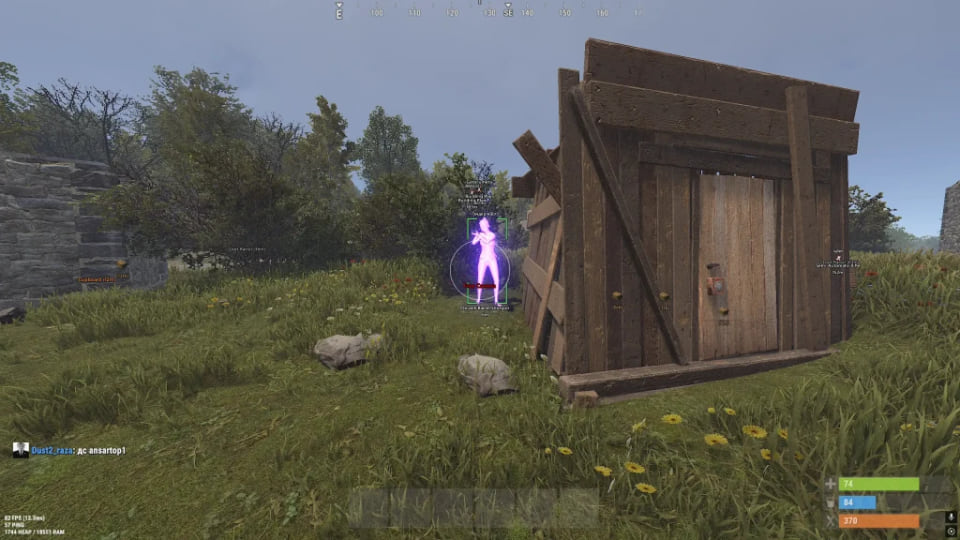
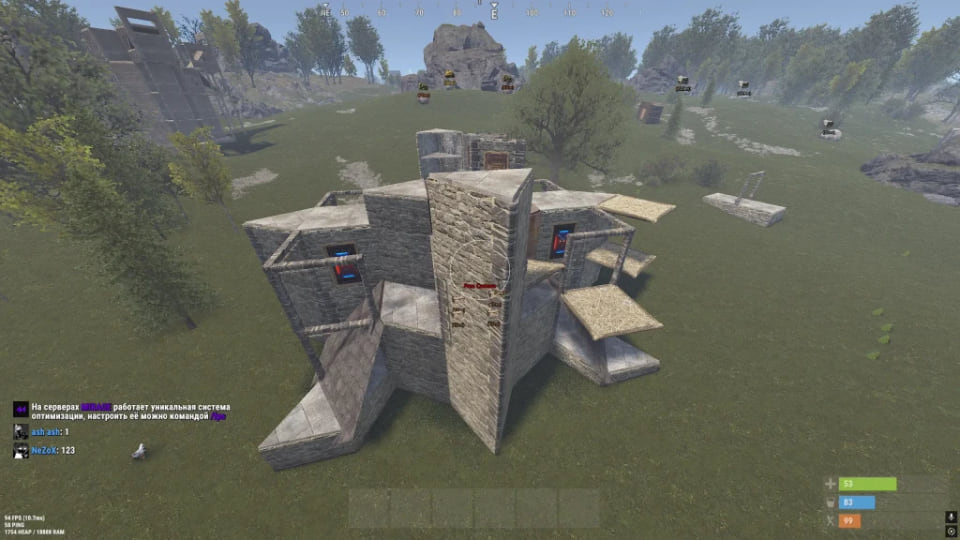
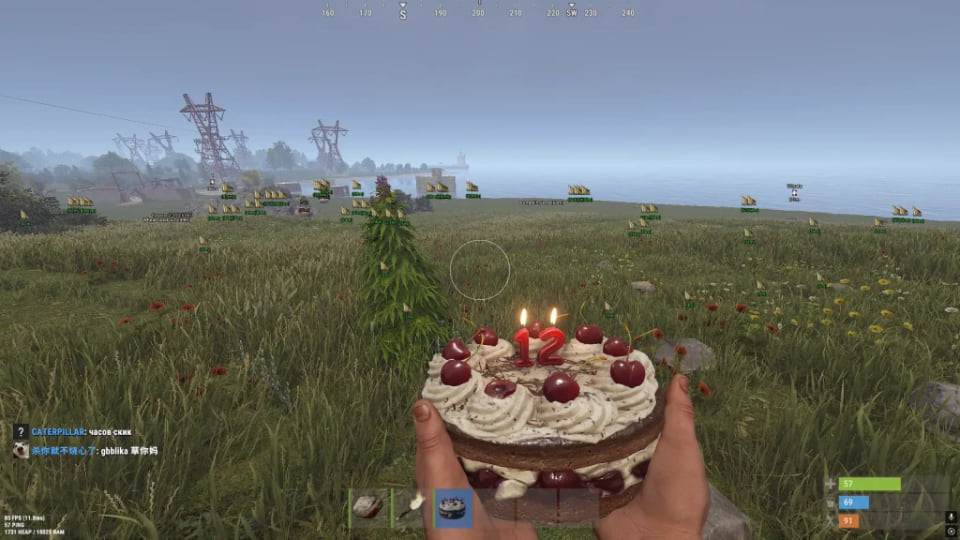
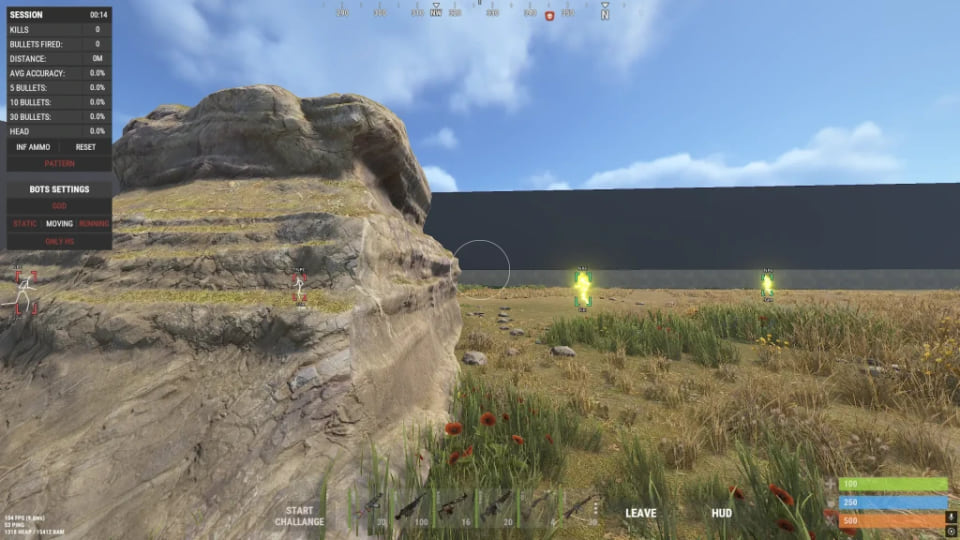
Choose an aiming mode and select the objects you want to see: Phoenix Full gives separate ESP controls for players, NPCs, resources and other Rust objects.
- Platform Rust
- Developer Phoenix (Wh-Satano)
Choose period
Phoenix (Wh-Satano)
Before you buy
- Operating system
- Windows 10, Windows 11 (21H2, 22H2, 23H2, 24H2, 25H2, 26H1)
- Processor
- Intel & AMD
- Game client
- Steam
- Gpu
- NVIDIA & AMD
This is a summary. Check all requirements and ask the seller about unknown conditions.
Payment and delivery via Digiseller. The key arrives by email right after payment.
This is a digital product: there is no physical shipping or separate shipping charge.
Screenshots
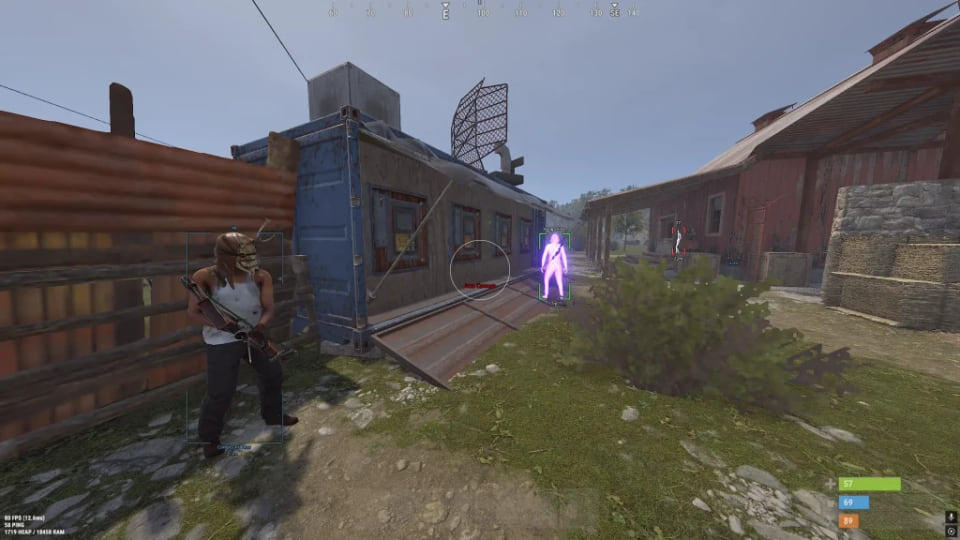
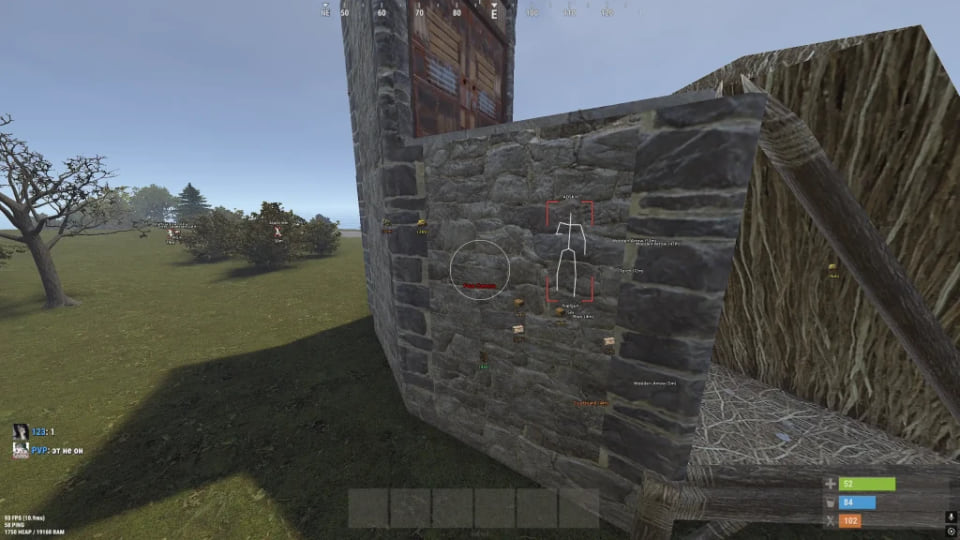
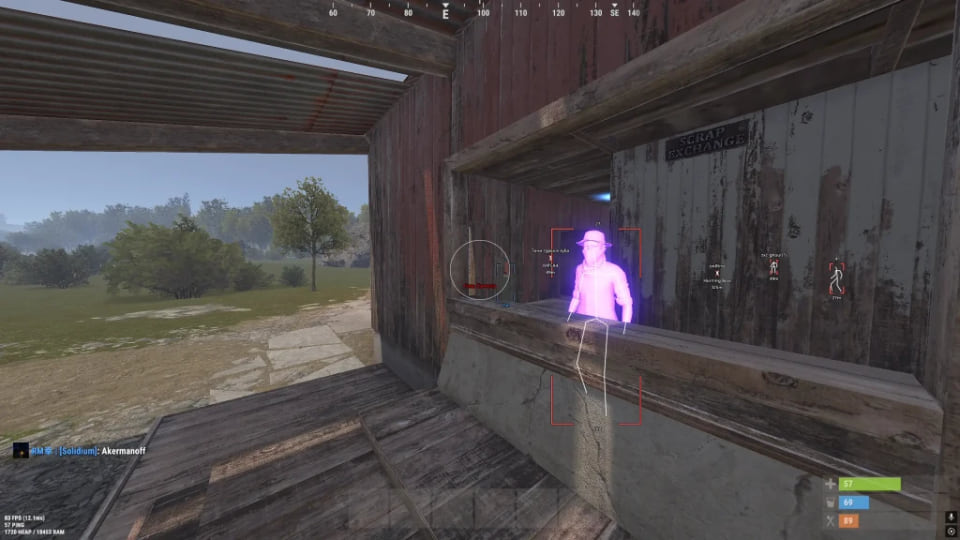
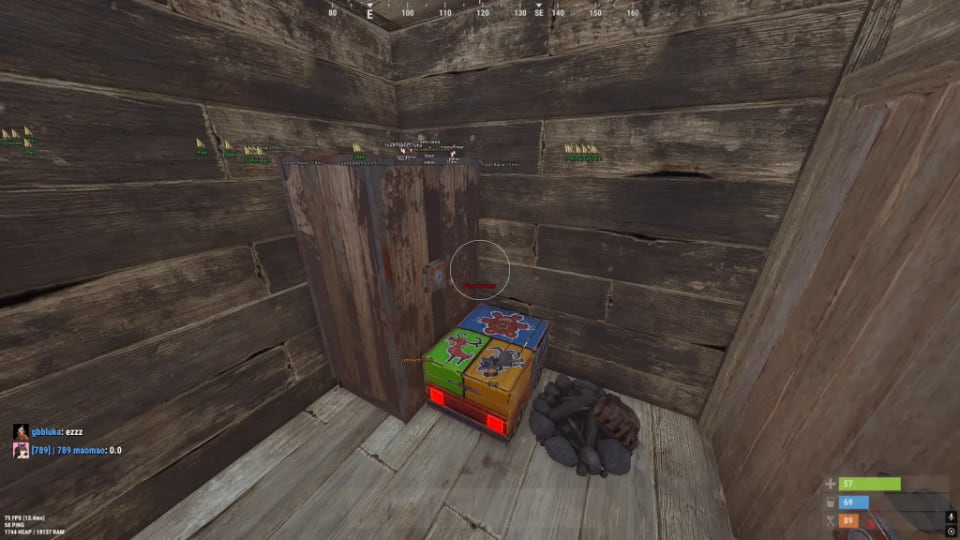
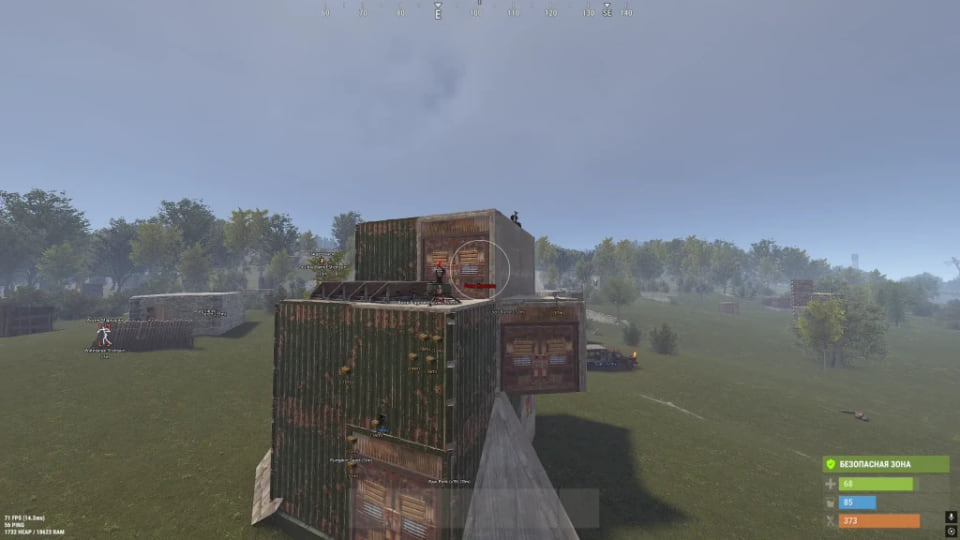
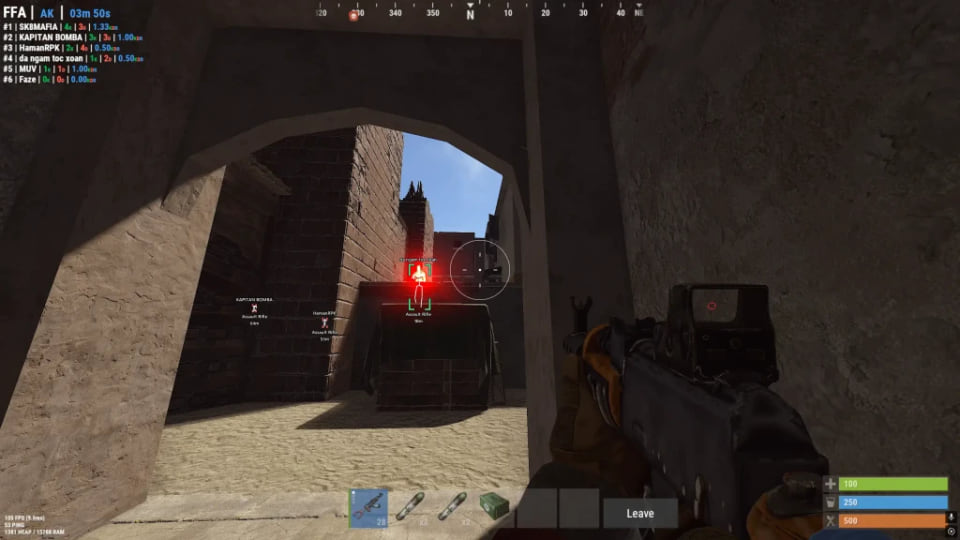
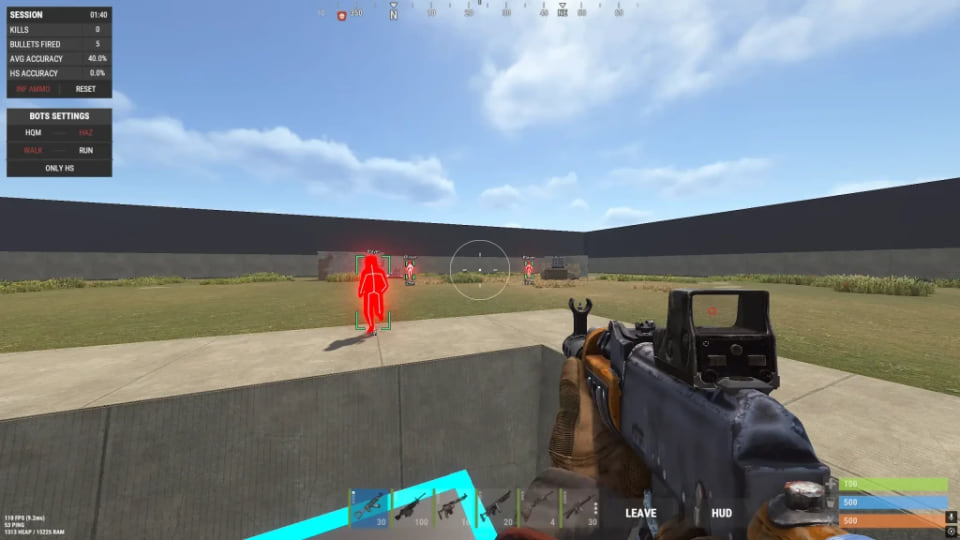
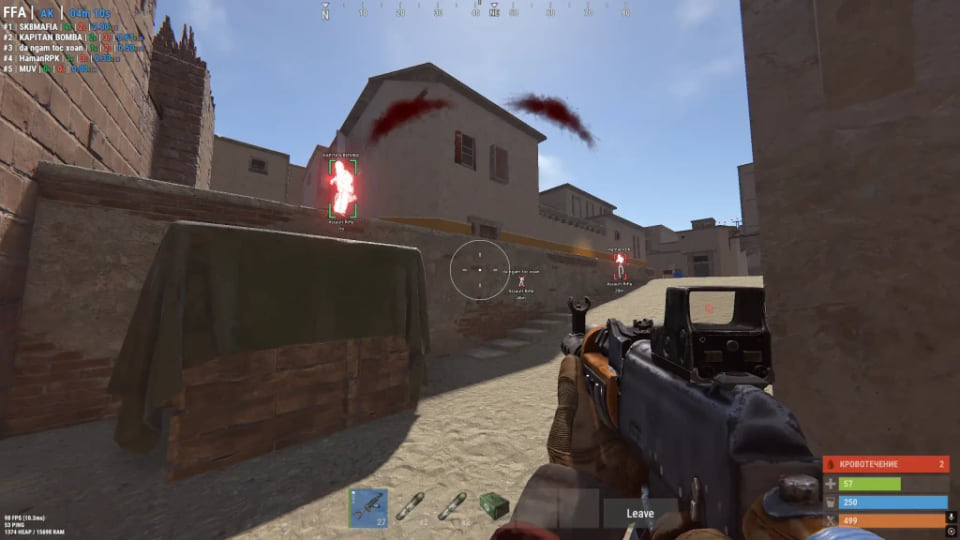
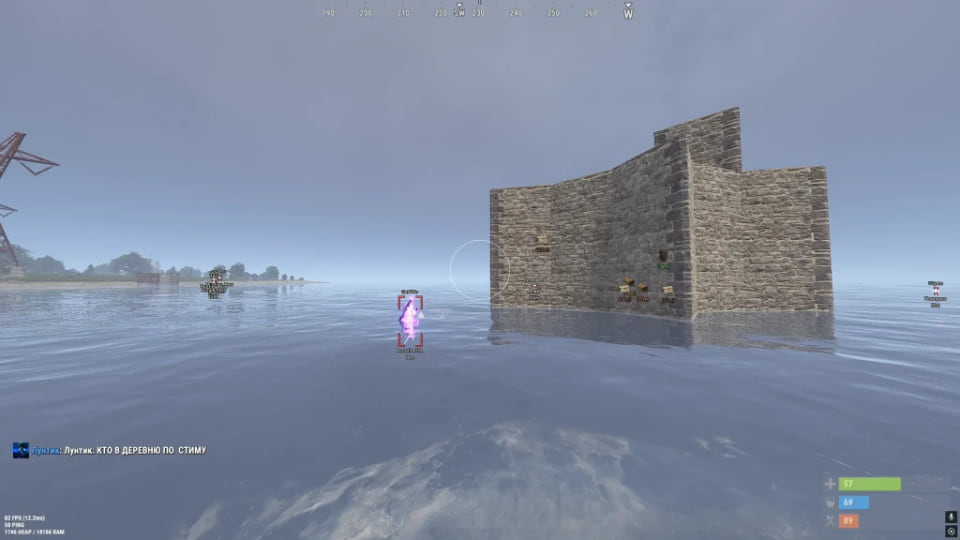
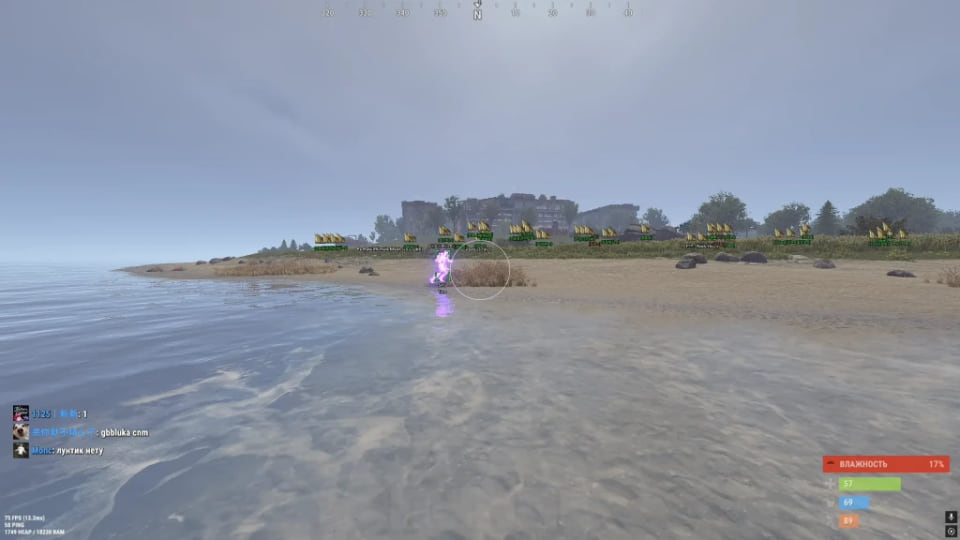
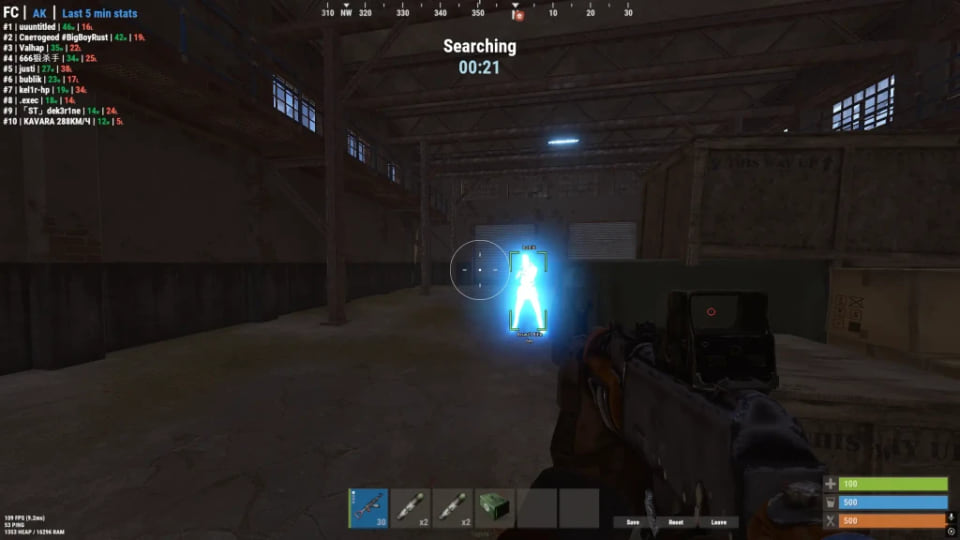
Features
131Aimbot
- Enable – enable/disable automatic guidance
- Mode – aimbot operating mode (vector, quiet)
- FOV – setting the target acquisition area for the aimbot
- FOV Circle – displaying the target acquisition area on the screen
- FOV Color – you can choose your own color for the aimbot’s circle
- Smooth – adjusting the smoothness of aiming at the target
- Bone Selection – selecting a body part to target
- Target NPC – aimbot will work on NPC
- Target Players – aimbot will work for players
- Ignore Teammates – exclusion of allies from the list of targets
- Target Wounded – targeting knocked players
- Target Lock – the aimbot sticks to the active target
- Visible Check – targeting only targets in the field of view
- Switch Delay – setting the delay before switching the aimbot to another target
- NoSpread – disable weapon spread
- Max Distance – setting the aimbot’s firing range for different purposes
Players ESP
- Enable – activates the tab for displaying players
- Box Type – enable boxes around the player model (full, corners only)
- Box Width – adjusting the thickness of the frames around players
- Box Outline – contour outline of ESP frames
- Text Outline – text outline to improve readability
- Ignore Teammates – do not show the VH of players from the team
- Sleepers – show models of sleeping players
- Wounded – show knocked players
- Teammates – show allies
- Player Name – displays player names
- Player Distance – displays the distance to players
- Held Item – display of an item or weapon in the player’s hands
- Hotbar – list of items in the players’ quick slot (hotbar)
- Max Distance – adjusting the maximum distance for displaying players
- Text Size – setting the ESP text size
- Visibility Colors – display players in different colors depending on visibility
- Skeleton – displays the player’s skeleton with adjustable color and line thickness
- Chams – filling player models into the selected material or texture
- Chams Material – choice of material for VX chams
- Corpse – show bodies/backpacks of killed players
NPC ESP (Bots)
- Enable – activates the tab for displaying bots
- NPC Name – displays NPC names
- NPC Distance – displays the distance to NPC
- NPC Held Item – displays an item in the hands of an NPC
- NPC Max Distance – setting the maximum distance for displaying NPCs
- NPC Text Size – adjusts the size of the NPC text
- NPC Box – displays boxes around NPCs
- NPC Box Color – setting the color of NPC boxes
- NPC Box Width – adjusting the thickness of the boxes
- NPC Box Outline – enable the outline of NPC frames
- NPC Skeleton – displays the NPC skeleton with adjustable color and line thickness
Resources ESP
- Enable – turn on/off display of resources
- Stone ESP – display of stone ore (with customizable color, icons, distance and text size)
- Metal ESP – display of metal ore (customizable)
- Sulfur ESP – display of sulfur ore (customizable)
- Hemp ESP – display of hemp (customizable)
- ESP Crate Color – ability to assign your own color for each category of resources
Buildings ESP
- Enable – turn on/off display of objects
- Cupboard ESP – display of cabinets (customizable)
- Workbench ESP – display of workbenches of different shooting ranges (configurable)
- Wooden Box ESP – display of wooden boxes (customizable)
- ESP Crate Color – the ability to assign a different color for each category of objects
Traps ESP
- Enable – turn on/off display of traps
- Auto Turret ESP – display of automatic turrets
- Landmine ESP – mine display
- Flame Turret ESP – display of flamethrower turrets
- SAM Site ESP – display of air defense settings
- Shotgun Trap ESP – display of guntraps
- Drone ESP – display of drones
- Icons – display a trap icon next to the text
- Distance Filter – adjust the display distance for each trap
- Text Size – adjusts the text size for traps
- ESP Traps Color – ability to assign a different color for each category of traps
Crates ESP (Crates)
- Enable – enable display of supply boxes
- Basic Crates ESP – display of regular crates
- Military Crates ESP – display of military crates
- Elite Crates ESP – display of elite crates
- Tool Crates ESP – display of tool boxes
- Medical Crates ESP – display of medical crates
- Food Crates ESP – displaying food crates
- Mine Crates ESP – displaying crates in mines
- Underwater Crates ESP – display of underwater crates
- Locked Crates ESP – display of locked boxes
- Loot Barrels ESP – display of barrels with loot
- Airdrop ESP – display of supplies from airdrop
- Distance Filter – adjusting the display distance for each type of box
- Icons – ability to enable an icon next to the text for some mailboxes
- ESP Crate Color – ability to assign your own color for each category of boxes
Vehicles ESP (Transport)
- Enable – enable display of transport
- Horses ESP – display of horses on the map
- Cars ESP – displaying cars on the map
- Motorboats ESP – display of motor boats
- RHIBs ESP – display of fast inflatable boats
- Tugboats ESP – display of tugboats
- Submarines ESP – display of submarines
- Minicopters ESP – display of minicopters
- Transport Helicopters ESP – display of transport helicopters
- Attack Helicopters ESP – display of combat helicopters
- Patrol Helicopters ESP – display of patrol helicopters
- Bradley APCs ESP – display of Bradley armored personnel carriers
- Trains ESP – display of trains
- Hot Air Balloons ESP – display of balloons
- Snowmobiles ESP – display of snowmobiles
- Motorbikes ESP – display of motorcycles
- Bicycles ESP – display of bicycles
- ESP Vehicles Color – the ability to assign your own color for each category of vehicle
- Distance Filter – adjusting the display distance for each type of transport
Loot ESP (Loot)
- Enable – enable display of items and loot
- Dropped Items ESP – displaying items on the ground
- Item Category Filter – filtering discarded items by category
- Item Icons – ability to enable or disable item icons
- Distance Filter – adjusting the display distance for each type of loot
- Text Size – adjusts the text size for each group of items
- Weapons
- Ammunition
- Armor and clothing
- Medicine
- Resources
- Components
- Tools
- Food and seeds
- Placeable objects
- Other items
Exploits
- Spider Man – allows you to climb up without using stairs
- Free Camera – free movement of the camera separately from the character
- Camera Speed – setting the speed of movement of a free camera
- Camera Sensitivity – adjusting the sensitivity of free camera control
- Bright Night – turns on increased brightness at night
- Night Brightness – adjust the brightness level of the night environment
Other Phoenix Rust Features
- Battle Mode – hides unnecessary ESP categories and leaves only the display of players (by bind)
- Font – select the font for the mod menu interface
- FPS Limit – setting a limit on the overlay refresh rate
- Config Save – saving the current configuration
- Config Load – loading a saved configuration
- Config Reset – reset configuration settings
Safety
Third-party software can lead to account restrictions. Confirm compatibility before paying.
System requirements
| Os | Windows 10, Windows 11 (21H2, 22H2, 23H2, 24H2, 25H2, 26H1) |
|---|---|
| Cpu | Intel & AMD |
| Gpu | NVIDIA & AMD |
| Game client | Steam |
Compare Vector and Silent
Aiming includes two modes, bone selection, FOV, smoothing and target filters. The full feature list describes visibility checks, switching delay and distance controls separately.
Filter the ESP categories
Players, NPCs, resources, buildings, traps, crates, vehicles and loot have separate settings. Adjust distance, colors and labels for the categories you need. Chams adds model material selection.
Adjust the scene and save profiles
Free Camera lets you inspect the surroundings, Bright Night changes nighttime lighting, and Spider Man modifies movement along vertical surfaces. Battle Mode reduces the number of ESP elements. Save and reload settings for later sessions.
Check your system first
The supplier lists Steam, Windows 10/11, Intel/AMD processors and NVIDIA/AMD graphics. Access is offered for 1, 7 or 30 days. Features and compatibility are based on the supplied product materials.
What to know before buying
How payment and delivery work
Checkout happens on the seller's side: for most cheats that is Digiseller, where the key appears on the order page as soon as the payment clears and is mirrored to your email. Some cheats are delivered manually — the key arrives once the seller confirms the order, and that is almost always the only reason for a delay. The licence countdown starts when the key is activated, not when you pay.
Ban risk, plainly
There is no safe cheat — only different odds of being caught in the next wave. Nobody compensates a lost game account: the key pays for access to software, not for an outcome.
Why cheats get detectedBefore the first launch
The routine is always the same: set the window mode from the requirements, start the software before entering a match, and do not switch everything on at once. The most dangerous window is the first days after a game or anti-cheat patch.
Safe launch checklistFAQ
Which durations are available?
Other cheats for Rust
SMG hack for Rust
SMGSMG is chams only — you see the targets in Rust, the gunplay stays yours. Supported client: Steam version of RUST only.
SMG Chams+: model highlight for Rust
SMGSMG Chams+ is chams only — you see the targets in Rust, the gunplay stays yours. Supported client: Steam.
BTG hack for Rust
BTGBTG covers both sides of Rust — aim modules and on-screen data — across 26 menu entries. Screen capture bypass is declared, so the overlay stays out of recordings.
Chams cheat Stealth Lite for Rust
StealthStealth Lite is a separate set of visual Rust tools.
- Toggle chams — F5
- Bright night — F6
- Camera flight — F9
Steam client and UEFI BIOS only.